

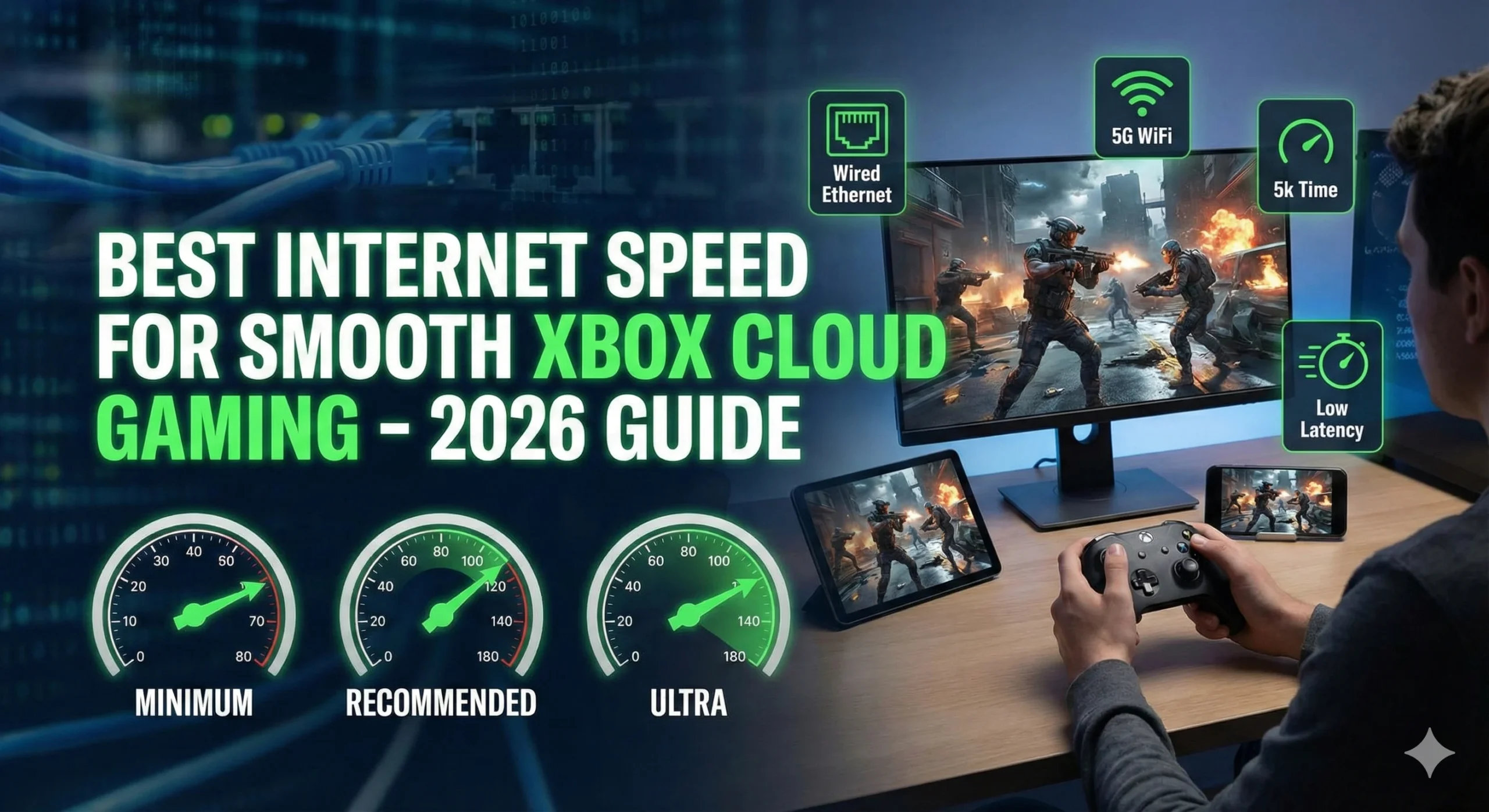
If you want the ultimate experience with Xbox Cloud Gaming, knowing the best internet speed for Xbox Cloud Gaming is essential. Cloud gaming allows you to play high-quality Xbox games on your PC, phone, or tablet without needing a console. However, network performance is the most critical factor determining lag, resolution, and overall gameplay smoothness.
In this updated 2026 guide, we’ll break down the exact speeds required, wired vs WiFi options, router optimization tips, latency reduction, common network issues, and advanced gamer tips to ensure you get the smoothest Xbox Cloud Gaming experience.
Why Internet Speed Matters for Cloud Gaming
How Cloud Gaming Streams Work
Unlike traditional gaming, Xbox Cloud Gaming doesn’t run the game locally. Instead:
- The game runs on Microsoft’s powerful cloud servers.
- Video frames are streamed in real-time to your device.
- Your inputs are sent back to the server for processing.
Because every action requires instant feedback between your device and the server, internet speed, latency, and packet loss play a massive role in your experience.
Ping, Latency, and Packet Loss Explained
- Ping is the time it takes for your device to send a signal to the server and back. Lower ping = faster response.
- Latency is the delay between your input and the game’s response. High latency causes lag.
- Packet Loss occurs when some data fails to reach the server, causing stuttering or black frames.
Minimum vs Recommended Speeds for Xbox Cloud Gaming
Knowing the best internet speed for Xbox Cloud Gaming helps you determine if your current connection is sufficient.
Minimum Speed: 10 Mbps
Microsoft recommends 10 Mbps as the minimum. This allows basic 720p gameplay, but expect occasional dips in quality or latency spikes.
Recommended Speed: 15–25 Mbps
For 1080p gameplay with fewer interruptions, a speed between 15 and 25 Mbps is ideal. Most casual players will experience smooth streaming within this range.
High-Quality Streaming: 40+ Mbps
For maximum stability, higher resolution (1440p if supported) and competitive gaming, aim for 40 Mbps or higher. This ensures crisp visuals and low input delay, especially in fast-paced games like Halo Infinite or Forza Horizon 5.
Wired vs WiFi for Xbox Cloud Gaming
Pros and Cons of Ethernet
- Pros: Most stable, lowest latency, consistent performance.
- Cons: Requires cable setup, less portable.
Tips for Improving WiFi Performance
- Use 5GHz frequency instead of 2.4GHz for faster speeds and lower interference.
- Place your router closer to your gaming device.
- Avoid multiple devices using bandwidth simultaneously during gameplay.
2.4GHz vs 5GHz
- 2.4GHz: Longer range, lower speed.
- 5GHz: Shorter range, higher speed, ideal for streaming cloud games.
Router Settings for Optimal Performance
To achieve the best internet speed for Xbox Cloud Gaming, configuring your router correctly is crucial.
QoS Setup
Quality of Service (QoS) prioritizes gaming traffic over other applications. Enable QoS in your router settings to reduce lag during streaming sessions.
Channel Selection
Interference from neighbors can affect WiFi. Use tools like WiFi Analyzer to choose the least crowded channel for 5GHz or 2.4GHz bands.
Firmware Updates
Keeping your router firmware updated ensures security patches and performance improvements, which can reduce disconnections or packet loss.
Reducing Input Lag & Latency
Even with the right speed, you can further optimize gameplay:
Close Background Apps
Applications like downloads, streaming services, or Chrome tabs consume bandwidth. Close them while gaming.
Use Low-Latency Modes in Windows
Enable Game Mode and Hardware-accelerated GPU scheduling in Windows 10/11 for reduced input lag.
Browser-Specific Optimizations
If using Xbox Cloud Gaming via browser, prefer Microsoft Edge or Google Chrome, and disable unnecessary extensions to minimize latency.
Common Network Issues & Fixes
Even with high speeds, problems can occur. Here’s how to solve them:
Intermittent Disconnections
- Reboot your router and modem
- Use wired Ethernet when possible
- Check Xbox server status: Xbox Live Status
Slow Game Load
- Clear browser cache or app cache
- Close bandwidth-heavy apps
- Test your internet speed using Speedtest
Black Screen Issues
- Ensure your browser or Xbox app is updated
- Disable VPNs that may interfere with streaming
- Restart PC and router
Advanced Tips for Gamers
VPN Considerations
VPNs may increase latency. Use only if necessary for privacy, and choose a server close to your location.
Network Monitoring Tools
Tools like PingPlotter or GlassWire can track latency spikes and help diagnose network issues affecting Xbox Cloud Gaming.
Optimal Times for Online Play
Peak internet hours may reduce your effective speed. Play during off-peak times to ensure the best internet speed for Xbox Cloud Gaming.
Conclusion
Achieving the best internet speed for Xbox Cloud Gaming ensures smooth 1080p gameplay, minimal input lag, and uninterrupted streaming. Follow these recommendations:
- Test your internet speed
- Use wired connections when possible
- Optimize router and Windows settings
- Close background apps during play
With the right setup, you can fully enjoy the cloud gaming experience without an Xbox console.

