

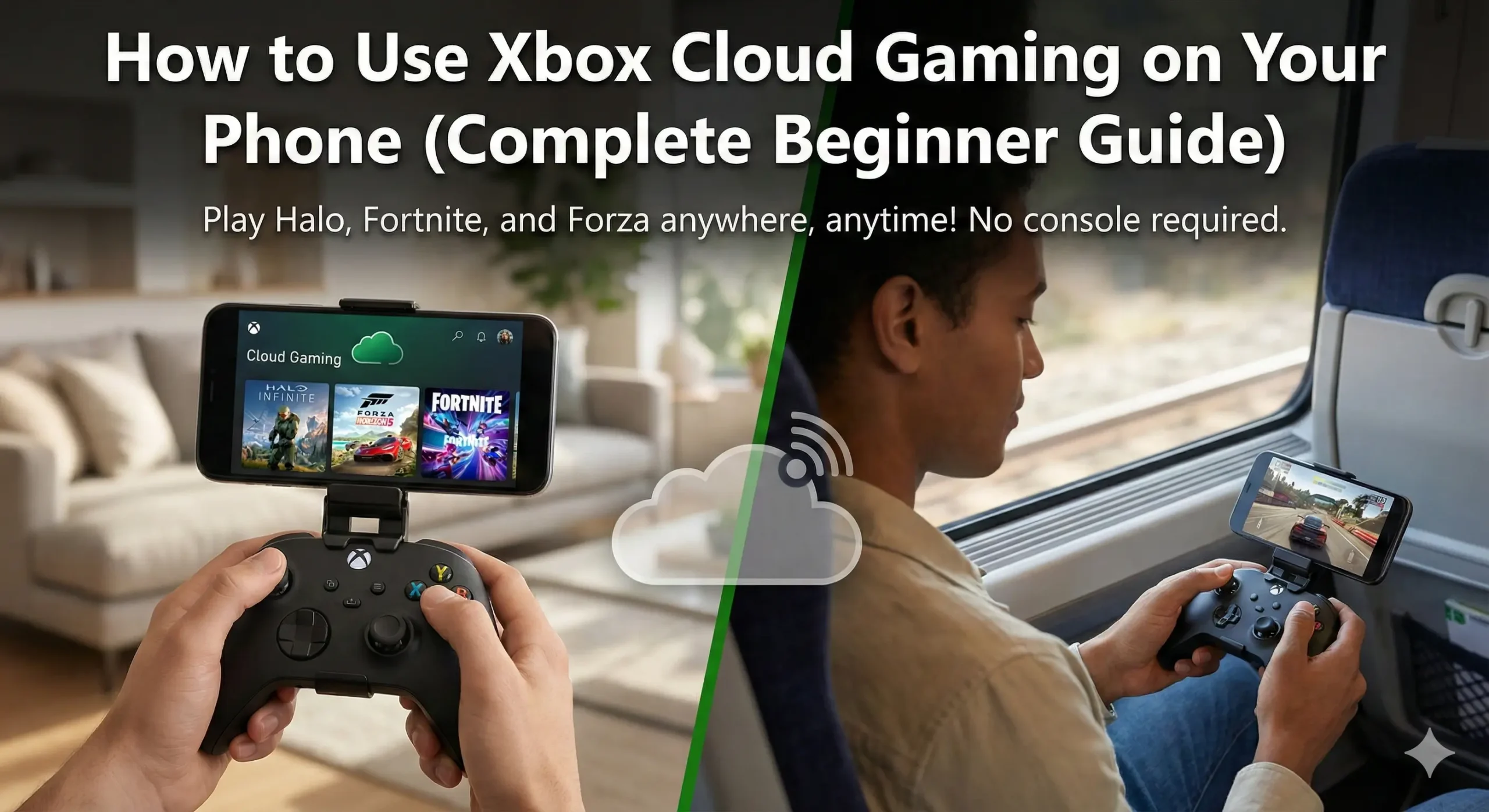
Xbox Cloud Gaming on Phone lets you play full Xbox games without owning a console or downloading huge files. With cloud streaming, you can access titles like Halo, Fortnite, and Forza directly on your mobile device — anywhere, anytime, whether you’re on the couch, commuting, or traveling. This complete beginner’s guide will walk you through everything you need to start gaming on your phone today.
In this complete beginner guide, you’ll learn everything you need to start gaming on your phone in minutes — from requirements to setup, controller pairing, performance tips, and real-world fixes for common issues.
Let’s jump in.
What You Need Before You Start
Before you can stream games to your phone, make sure you have the basics in place.
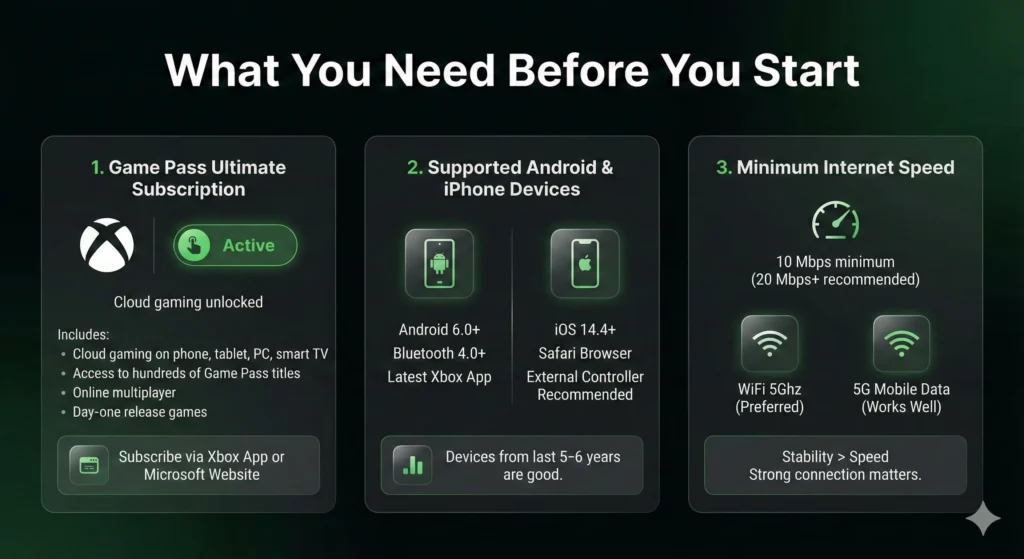
1. You Need a Game Pass Ultimate Subscription for Xbox Cloud Gaming on Phone
Xbox Cloud Gaming is included with Xbox Game Pass Ultimate — the only plan that unlocks cloud streaming.
With Ultimate, you get:
- Cloud gaming on phone, tablet, PC, smart TV
- Access to hundreds of Game Pass titles
- Online multiplayer
- Day-one release games
If you don’t have it yet, you can subscribe through the Xbox app or the Microsoft website.
2. Supported Android & iPhone Devices
You don’t need a powerful phone, but you do need a supported device.
Android requirements:
- Android 6.0 or newer
- Bluetooth 4.0+ (for controllers)
- Latest Xbox app installed
iPhone/iPad requirements:
- iOS 14.4 or newer
- Use the Safari browser for cloud gaming
- External controller recommended
If your phone is from the last 5–6 years, you’re good.
3. Minimum Internet Speed
For smooth gameplay, Microsoft recommends:
- 10 Mbps minimum
- 20 Mbps or higher for best quality
- WiFi 5Ghz preferred over 2.4Ghz
- 5G mobile data works surprisingly well
Cloud gaming needs stability more than speed — so a strong, consistent connection matters.
Step-by-Step: How to Set Up Xbox Cloud Gaming on Your Phone
Here’s the simplest setup guide you’ll find — just follow these steps.
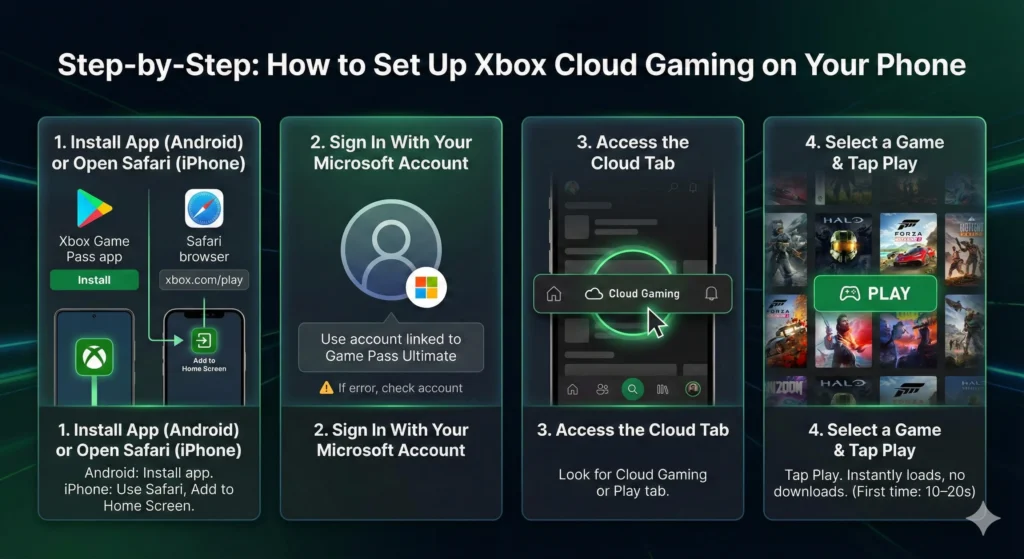
1. Install the Xbox App (Android) or Open Safari (iPhone)
- Android: Install the Xbox Game Pass app from Google Play.
- iPhone: Open Safari → go to xbox.com/play → add to Home Screen (recommended).
The browser version works like a native app on iPhone.
2. Sign In With Your Microsoft Account
Use the same account linked to your Game Pass Ultimate subscription.
If you get a “not supported” error, you’re likely signed into the wrong account.
3. Access the Cloud Tab
Inside the Xbox app (Android) or browser (iOS), look for:
☁️ Cloud Gaming or Play
This shows you hundreds of ready-to-stream games.
4. Select a Game & Tap Play
Tap Play and the game instantly loads — no downloads, no storage needed.
The first time may take 10–20 seconds, depending on your network.
How to Connect a Controller to Your Phone
Using a controller can significantly improve your experience with Xbox Cloud Gaming on Phone, especially for action-heavy or competitive titles. Here’s how to connect one quickly and reliably.
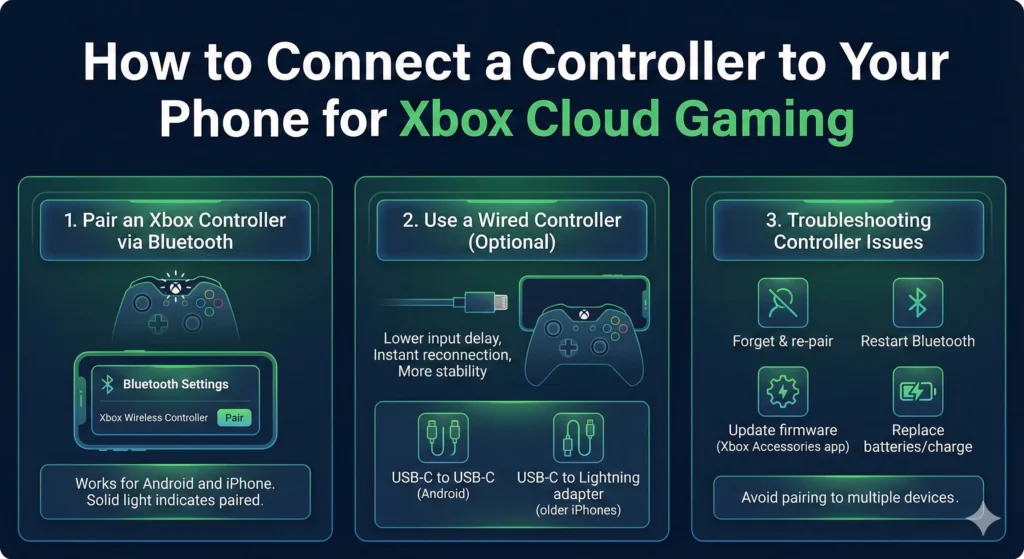
1. Pair an Xbox Controller via Bluetooth
Works for Android and iPhone.
- Turn on the controller
- Hold the pairing button until the Xbox logo blinks
- Open your phone’s Bluetooth settings
- Select Xbox Wireless Controller
Once paired, the light stays solid.
2. Use a Wired Controller (Optional)
If Bluetooth latency bothers you, wired options give:
- Lower input delay
- Instant reconnection
- More stability during long sessions
You can connect using:
- USB-C to USB-C cable (most Android phones)
- USB-C to Lightning adapter (older iPhones)
3. Troubleshooting Controller Issues
If your controller won’t connect:
- Forget & re-pair the controller
- Restart Bluetooth
- Update firmware using the Xbox Accessories app
- Replace batteries or fully charge
- Avoid pairing to multiple devices at once
How to Use Touch Controls (Supported Games)
No controller? No problem. Many Xbox Cloud titles now support on-screen touch controls.
Popular Games with Touch Controls
Some big titles that work perfectly with touch:
- Fortnite
- Halo Infinite (limited modes)
- Minecraft Dungeons
- Hades
- Star Wars Jedi: Fallen Order
- Forza Horizon 5 (touch steering available)
Not all games support touch, but the library grows every month.
Touch Controls Tips
- Increase screen brightness for visibility
- Enable “Lock rotation” so your screen doesn’t flip
- Use a phone controller grip for comfort
- Try reducing sensitivity in-game for better aim
Touch controls are surprisingly good — especially for casual play.
Improve Performance on Your Phone
To get smoother gameplay while using Xbox Cloud Gaming on Phone, try these performance-boosting tweaks.
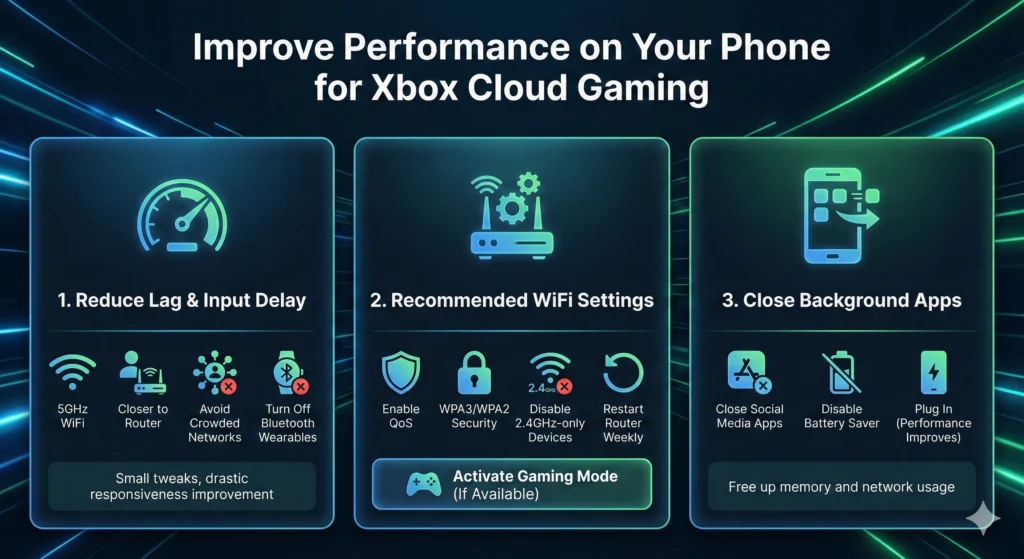
1. Reduce Lag & Input Delay
- Switch to 5GHz WiFi
- Sit closer to your router
- Avoid crowded networks
- Turn off Bluetooth wearables during gaming
Even small tweaks can drastically improve responsiveness.
2. Recommended WiFi Settings
For the best possible cloud performance:
- Enable Quality of Service (QoS) on your router
- Use WPA3 or WPA2 security
- Disable outdated 2.4GHz-only devices
- Restart your router weekly
Most modern routers have “gaming mode” — use it if available.
3. Close Background Apps
Streaming is heavy on memory and network usage.
Before launching a cloud game:
- Close social media apps
- Disable Battery Saver mode
- Plug in your phone if battery is low (performance improves)
Common Phone Setup Problems & Fixes
Here are the most frequent beginner issues — and how to fix them fast.
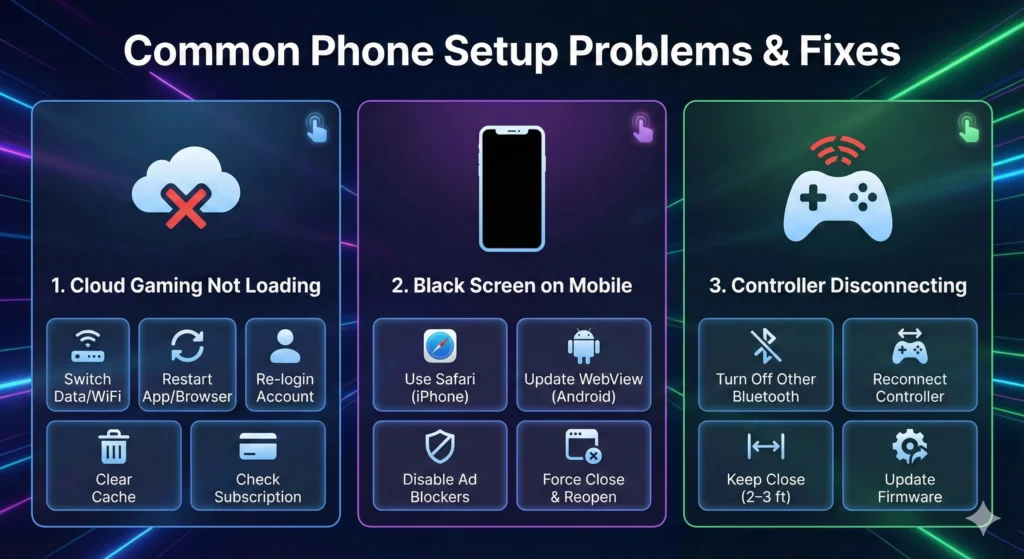
1. Cloud Gaming Not Loading
Try:
- Switching from mobile data to WiFi
- Restarting your browser or Xbox app
- Logging out and back into the Microsoft account
- Clearing Safari/Chrome cache
- Checking Game Pass subscription status
2. Black Screen on Mobile
This usually happens due to browser conflicts.
Fixes:
- iPhone: use Safari only, not Chrome
- Android: update WebView
- Disable ad blockers
- Force close & reopen the app
3. Controller Disconnecting
Typically caused by Bluetooth interference.
Try:
- Turning off Bluetooth headphones/watches
- Reconnecting controller
- Keeping the controller within 2–3 feet
- Updating firmware
Final Tips for the Best Experience
To get console-quality gameplay while using Xbox Cloud Gaming on Phone, follow these final recommendations:
✔ Play on a 5GHz WiFi network
✔ Use a controller for better control
✔ Keep your phone cool — heat reduces performance
✔ Add Xbox Cloud Gaming to your home screen for quick access
✔ Try games designed for touch controls when traveling
✔ Use a phone stand or clip for long sessions
With the right setup, mobile cloud gaming feels surprisingly close to playing on an actual Xbox — without the downloads, installs, or storage limits.
FAQ
Q1: Can I use Xbox Cloud Gaming on phone without a controller?
A: Yes, many games support touch controls, but for best experience, a Bluetooth or wired controller is recommended.
Q2: What devices support Xbox Cloud Gaming on mobile?
A: Android 6.0+ devices and iPhones with iOS 14.4+ are supported. Some older phones may not perform optimally.
Q3: What internet speed do I need for Xbox Cloud Gaming on phone?
A: Microsoft recommends at least 10 Mbps for smooth gameplay. 20 Mbps or higher is ideal, especially for high-resolution games.
Q4: How do I fix the controller not connecting to my phone?
A: Try re-pairing via Bluetooth, update firmware, check battery levels, or use a wired connection for stability.
Q5: Why is Xbox Cloud Gaming not loading on my phone?
A: Common causes include an incorrect Microsoft account, network issues, browser cache, or temporary server problems. Restarting the app/browser usually helps.

