

If you’re wondering why Xbox Cloud Gaming lag on PC, you’re not alone. Cloud gaming relies heavily on fast, stable internet, optimized browser settings, and a clean-running computer. Even one weak link—WiFi issues, slow speeds, browser problems, or background apps—can cause stutter, high latency, and blurry gameplay.
This guide breaks down exactly why Xbox Cloud Gaming gets laggy on PC and gives you 8 proven fixes that actually make a noticeable difference.
Xbox Cloud Gaming makes it insanely easy to play console-quality games on your smartphone — no downloads, no storage issues, and no Xbox required. If you want a complete walkthrough with visuals, you can also check this beginner-friendly guide on how to use Xbox Cloud Gaming on your phone here: https://newzory.com/how-to-use-xbox-cloud-gaming-on-phone
Why Xbox Cloud Gaming Lags on PC
Before jumping into fixes, let’s look at the most common causes behind Xbox Cloud Gaming lag on PC:
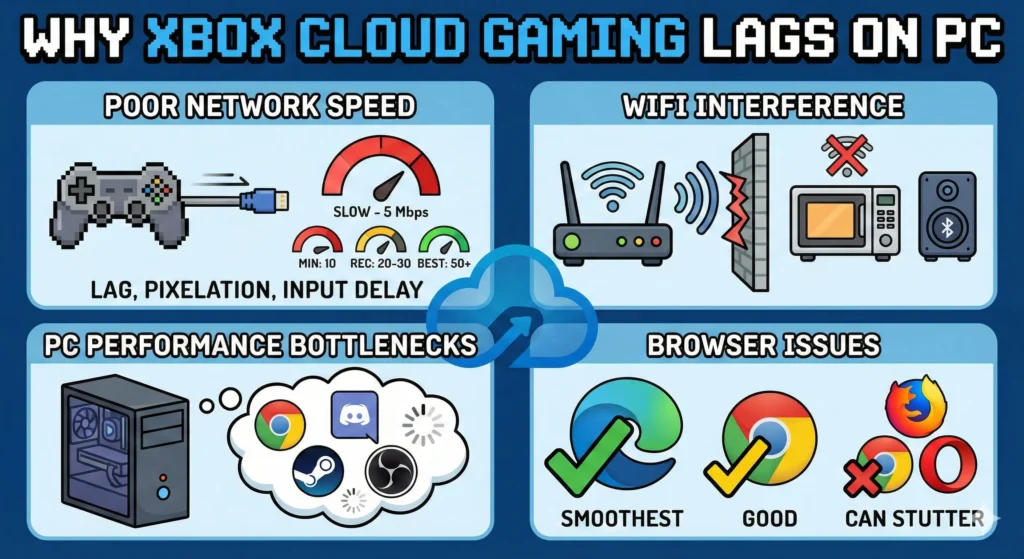
Poor Network Speed
Cloud gaming requires real-time video streaming.
- Minimum: 10 Mbps
- Recommended: 20–30 Mbps
- Best: 50 Mbps+ with low latency
Slow speeds = lag, pixelation, and input delay.
WiFi Interference
Walls, floors, microwaves, Bluetooth devices, and neighbors’ routers all create interference.
This weakens your signal and increases ping spikes.
PC Performance Bottlenecks
If your PC is loaded with apps using CPU/RAM—Chrome tabs, Discord, Steam, OBS, Teams—your browser may struggle to decode the video stream smoothly.
Browser Issues
Some browsers simply perform better than others for cloud streaming.
Edge → Smoothest
Chrome → Good
Firefox/Opera → Can stutter
Fix #1 – Switch From WiFi to Ethernet
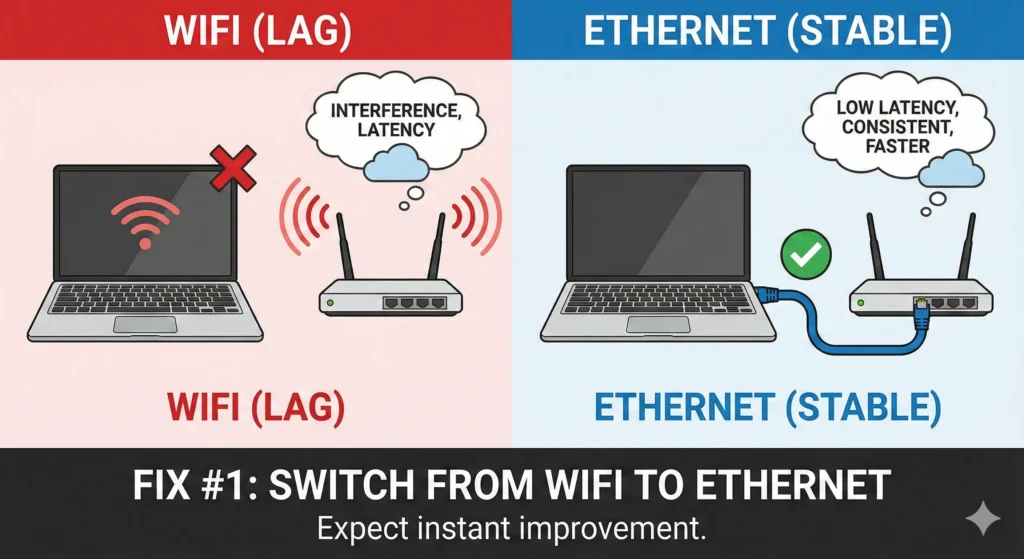
A wired connection is the #1 fix for Xbox Cloud Gaming lag.
Why wired is 10× more stable
- No interference
- Lower latency
- Faster consistency
- Zero packet loss
Even cheap Ethernet cables outperform the best WiFi.
Quick setup guide
- Plug one end of the Ethernet cable into your router
- Plug the other into your PC
- Turn off WiFi
- Test Xbox Cloud Gaming again
Expect instant improvement.
Fix #2 – Use 5GHz WiFi (Not 2.4GHz) to Cut Xbox Cloud Gaming Lag on PC
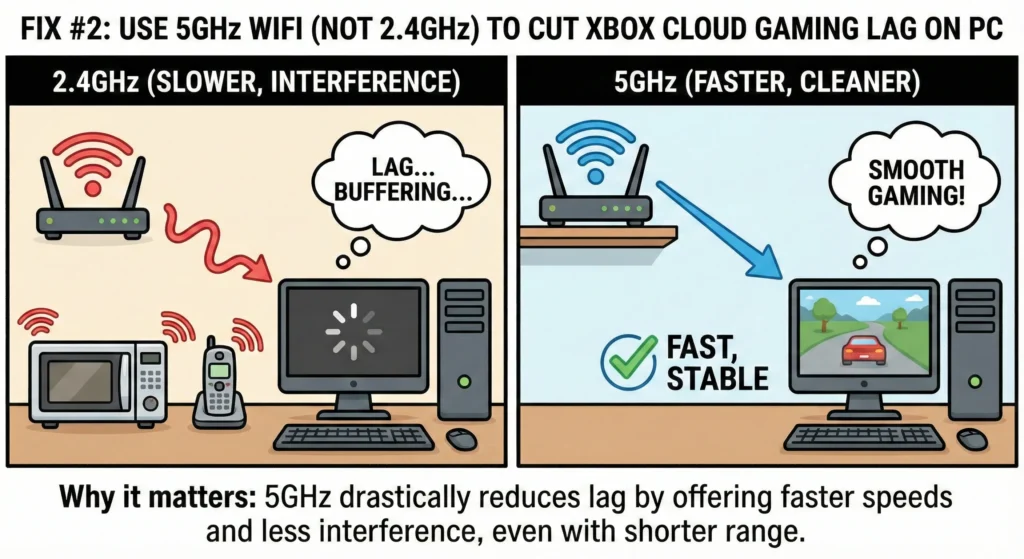
If Ethernet is impossible, 5GHz WiFi is the next best option.
Signal strength vs speed
- 2.4GHz → Long range but slower, more interference
- 5GHz → Shorter range but faster and cleaner
5GHz dramatically reduces lag.
Router distance tips
- Stay in the same room if possible
- Avoid thick walls
- Place the router high (not on the floor)
- Move metal objects away from the router
Fix #3 – Close CPU/RAM Heavy Programs
Cloud gaming depends on your PC’s ability to decode video smoothly.
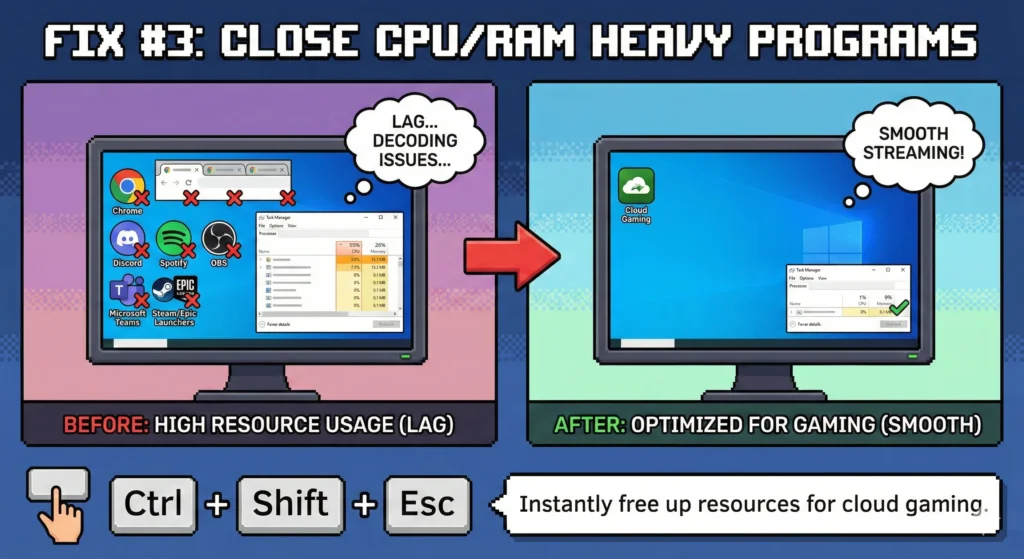
Apps to close:
- Chrome tabs
- Discord
- Spotify
- OBS / Streamlabs
- Microsoft Teams
- Steam / Epic launchers
Task Manager quick cleanup
- Press Ctrl + Shift + Esc
- Go to Processes
- Sort by Memory or CPU
- End unnecessary tasks
You’ll instantly free up resources for cloud gaming.
Fix #4 – Change Browser for Xbox Cloud Gaming
Not all browsers handle video streaming equally.
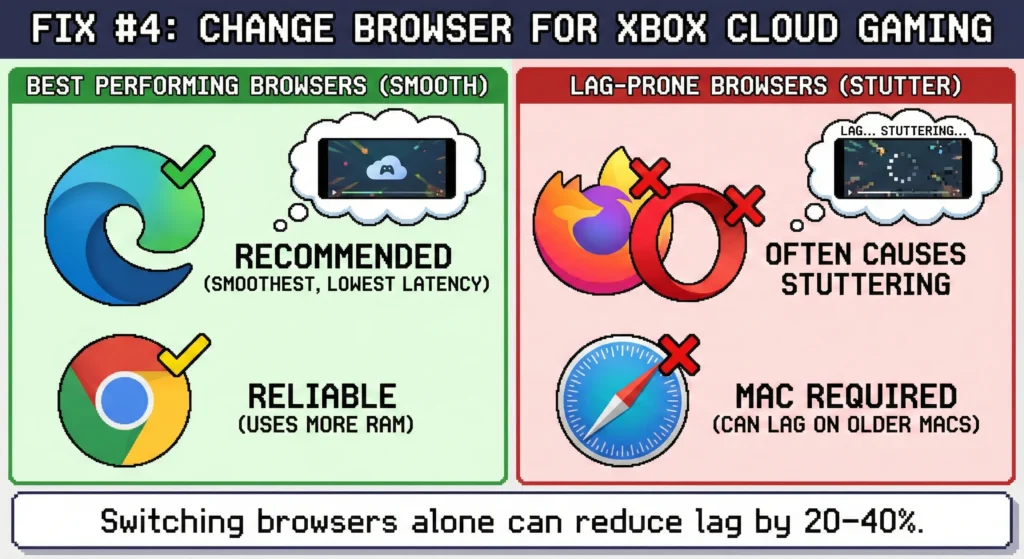
Best performing browsers
- Microsoft Edge → Officially recommended for Xbox Cloud Gaming
- Google Chrome → Reliable, but uses more RAM
- Firefox / Opera → Often causes stuttering
Edge vs Chrome vs Safari
- Edge (Windows): Smoothest, lowest latency
- Chrome: Fast but resource-heavy
- Safari: Required for macOS, but can get laggy on older Macs
Switching browsers alone can reduce lag by 20–40%.
Fix #5 – Lower Visual Settings in the Xbox App
If you’re using the Xbox app for cloud gaming:
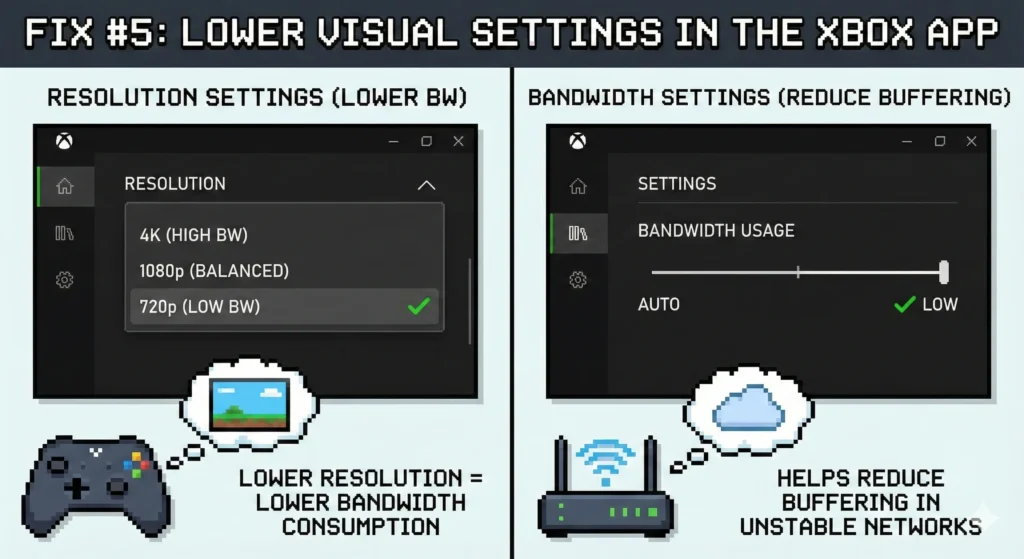
Resolution
Try lowering the resolution to:
- 720p or
- 1080p balanced
Lower resolution = lower bandwidth consumption.
Bandwidth Settings
Inside the Xbox app settings:
- Set “Bandwidth usage” to Auto or Low
This helps reduce buffering in unstable networks.
Fix #6 – Disable VPN, Proxies, or Firewalls
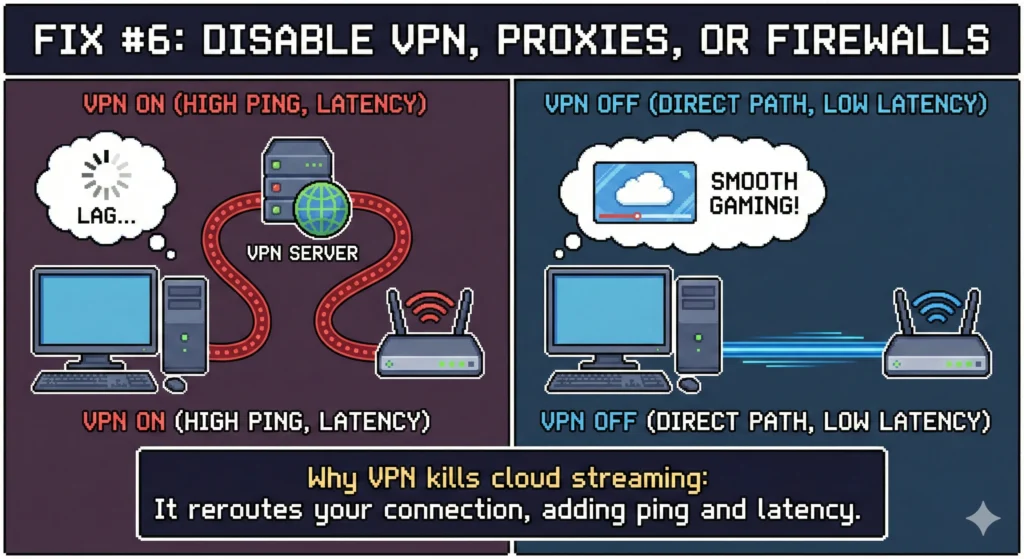
Why VPN kills cloud streaming
VPN reroutes your connection through another server → adds ping + latency.
Cloud gaming becomes instantly laggy.
Quick toggle instructions
- Turn off any VPN apps
- Disable browser VPN extensions
- Temporarily turn off strict firewall rules
If your employer or school forces a proxy, cloud gaming may never run smoothly.
Fix #7 – Update Windows + Graphics Drivers
Outdated drivers can cause stutter, frame tearing, or encoding delays.
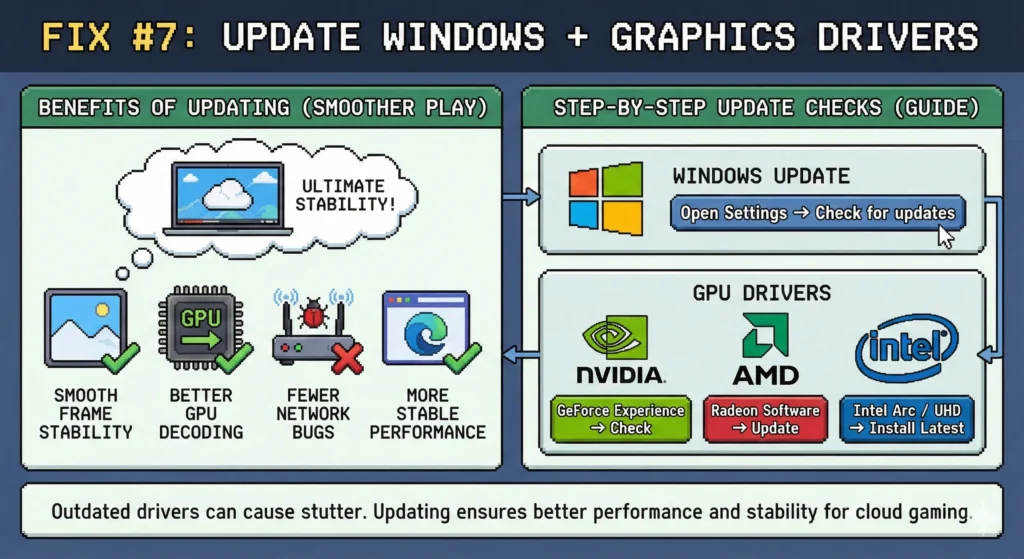
Smooth frame stability through updates
- Better GPU decoding
- Fewer network bugs
- More stable browser performance
Step-by-step update checks
Windows Update
- Open Settings → Windows Update
- Click Check for updates
GPU drivers
- NVIDIA GeForce Experience → Check updates
- AMD Radeon Software → Update drivers
- Intel Arc / UHD Drivers → Install latest version
Fix #8 – Restart Router + Enable QoS
Sometimes routers just need a reset.
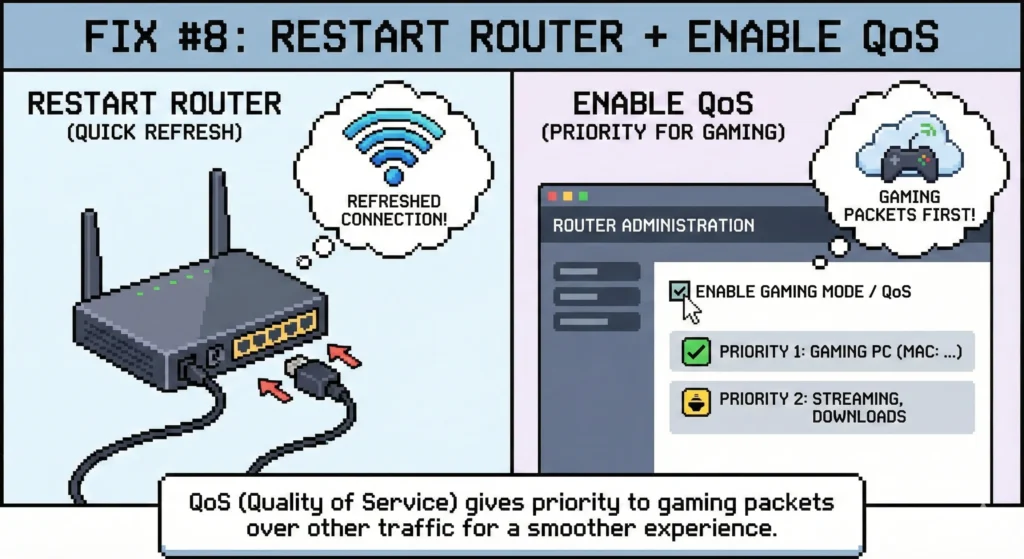
Traffic prioritization for gaming
QoS = Quality of Service
It gives priority to gaming packets over streaming or downloads.
Recommended QoS settings
In router admin page:
- Enable Gaming Mode or QoS
- Prioritize your PC’s MAC address
- Limit bandwidth for other devices if needed
Most modern routers support this.
When Lag Is Caused by Microsoft (Server Issues)
Sometimes the problem isn’t you at all.
Possible Microsoft issues:
- Server overload
- Regional server problems
- Temporary outages
- Maintenance windows
You can check official status here:
https://support.xbox.com/en-US/xbox-live-status
If servers are down, nothing on your PC can fix the lag.
Final Thoughts: Stable Cloud Gaming on PC
When Xbox Cloud Gaming is laggy on PC, it’s almost always due to network issues, WiFi interference, browser choices, or PC resource bottlenecks. By applying these eight fixes—especially switching to Ethernet, using 5GHz WiFi, closing background apps, and optimizing your browser—you’ll experience smoother gameplay, lower input delay, and better frame consistency.
Cloud gaming is only getting better, and with the right setup, your PC can feel as smooth as a dedicated Xbox console.

