

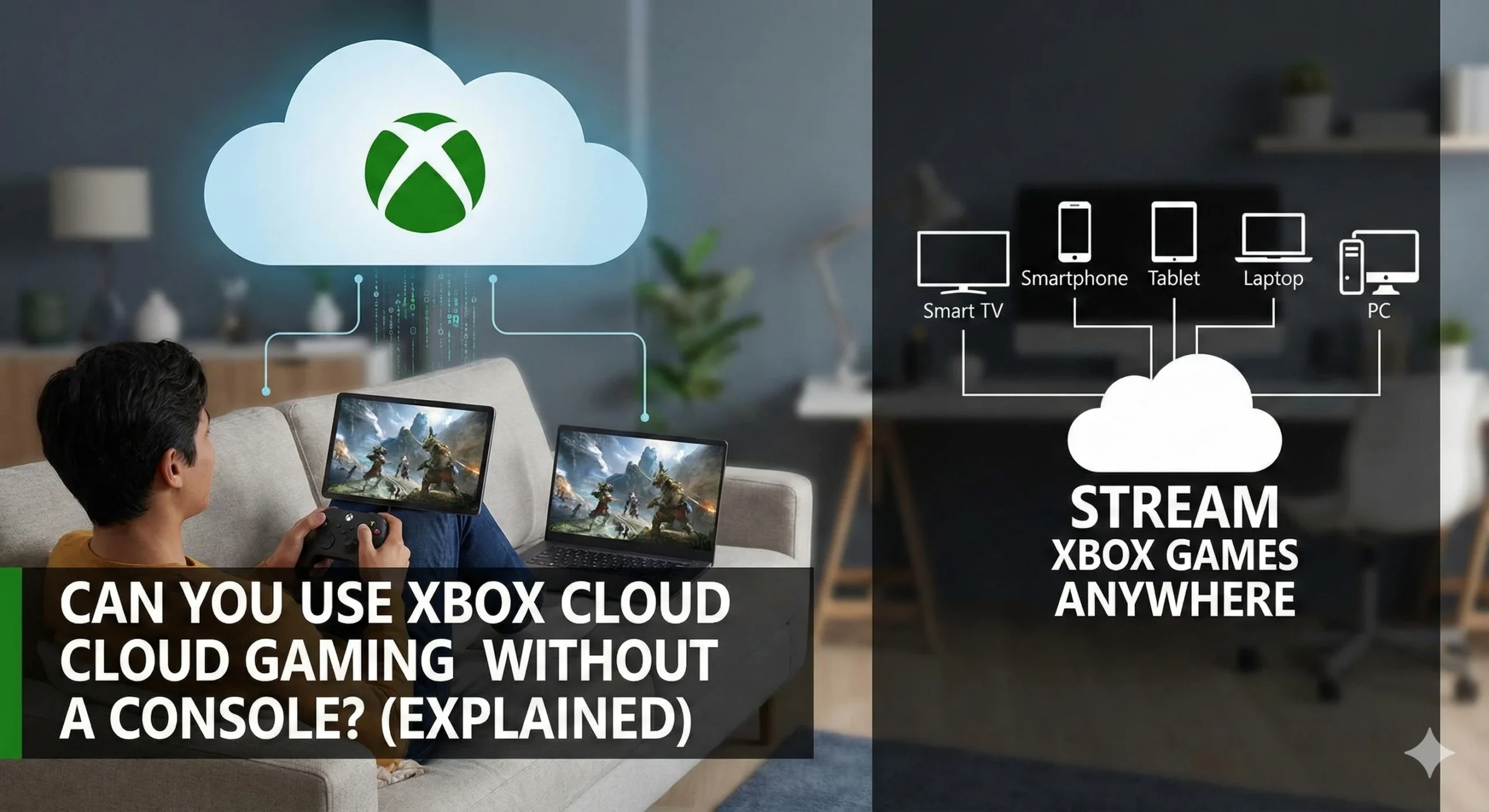
If you’ve ever wondered if you can use Xbox Cloud Gaming without a console, the short answer is yes. Microsoft’s cloud gaming service lets you stream Xbox games to a wide range of devices, meaning you don’t need to own an Xbox console to enjoy popular titles.
In this guide, we’ll break down how Xbox Cloud Gaming works, which devices are supported, subscription requirements, and step-by-step instructions to get started. We’ll also cover the key advantages and limitations of cloud gaming, along with practical tips to help you get the best possible experience without an Xbox console. Additionally, you can even play Xbox Cloud Games on your mobile device, making high-quality gaming more accessible than ever.
Understanding Xbox Cloud Gaming
What Cloud Gaming Is
Xbox Cloud Gaming is a service that streams games directly from Microsoft’s servers to your device. Unlike traditional console gaming, the game runs in the cloud and sends video output to your device while capturing your inputs in real-time.
How It Differs From Console Gaming
- No local installation required: Games don’t consume local storage.
- Play anywhere: Stream on compatible devices without owning an Xbox.
- Automatic updates: Cloud games are always updated without manual patches.
Devices That Don’t Require an Xbox Console
You can enjoy Xbox Cloud Gaming on many non-console devices.
Windows PC
Access games via the Xbox app or supported browsers (Edge, Chrome, Firefox). A Microsoft account with Game Pass Ultimate is required.
Android Phones & Tablets
Download the Xbox Game Pass app from Google Play to play directly on Android devices. Controller support is available via Bluetooth or USB. Guide to play Xbox cloud in you phone
iPhone & iPad
Play using Safari or the Xbox Cloud Gaming web app. Apple’s browser restrictions require using the web interface rather than a dedicated app.
Smart TVs (Samsung, LG)
Certain smart TVs support cloud gaming via built-in apps or browser access, allowing you to stream games without a console.
Chromebooks & MacBooks via Browser
Modern browsers like Chrome, Edge, or Safari on MacBooks and Chromebooks can stream Xbox games, as long as the device meets minimum internet speed requirements.
Subscription Requirements
Xbox Game Pass Ultimate
To play Xbox Cloud Gaming without a console, an Xbox Game Pass Ultimate subscription is mandatory. This plan gives you access to hundreds of titles across devices.
Free Trial Options
Microsoft often provides free trial periods for new Game Pass Ultimate users, allowing you to test cloud gaming on your devices without immediate payment.
Regional Availability
Xbox Cloud Gaming is available in many countries but not everywhere. Check Microsoft’s official region availability page to confirm service access in your area.
Step-by-Step Setup for Non-Console Devices
Logging In
- Open the Xbox Game Pass app or visit xbox.com/play.
- Log in with your Microsoft account tied to Game Pass Ultimate.
Accessing Cloud Games
- Navigate to the Cloud Gaming tab in the app or browser.
- Browse available titles and select the game to start streaming.
Controller Setup
- Xbox controllers (wired or wireless) work seamlessly.
- Third-party controllers can also be paired via Bluetooth.
- On mobile, touch controls are supported for selected games.
Advantages – Use Xbox Cloud Gaming Without a Console
Cost Savings
No need to invest in an Xbox Series X/S or One console. All you need is a subscription and a compatible device.
Portability
Play your favorite games anywhere—on a laptop, tablet, or even your smartphone—without carrying a console.
Immediate Updates
Cloud games are always updated on Microsoft servers. You never have to download patches or updates locally.
Limitations & Things to Know
Game Library Differences
Not every Xbox title is available for cloud gaming. Some games may remain console-exclusive.
Input Lag Potential
Depending on internet speed, latency can affect gameplay, especially for fast-paced multiplayer titles.
Multiplayer Restrictions
While most multiplayer games work, some features may be limited or require a console for full functionality.
Tips for the Best Experience Using Xbox Cloud Gaming Without a Console
Use Wired Internet When Possible
A wired Ethernet connection reduces latency and ensures smooth streaming.
Pair Compatible Controllers
While touch controls are available, pairing a controller enhances gameplay for action and racing titles.
Optimize Browser or Device Settings
- Close background apps and browser tabs.
- Use the latest browser or Xbox app updates.
- Enable hardware acceleration if available.
Conclusion
So, can you use Xbox Cloud Gaming without Xbox console? Absolutely! With a compatible device, Xbox Game Pass Ultimate subscription, and a reliable internet connection, you can play hundreds of Xbox titles anywhere, anytime.
Cloud gaming offers cost savings, portability, and instant updates, though minor limitations like input lag or game availability exist. By following proper setup and optimization tips, you can enjoy a smooth and seamless Xbox gaming experience without ever owning a console.

